
In this tutorial, we will show you how to Collapse subheadings for this follow the below steps
Step 1: First, you need to install and activate our Easy Table of Contents PRO plugin.
Step 2: Go to the Easy Table Of Contents settings, under the Settings section which you will find in the dashboard on the left side of your window.

Step 3: Now Scroll down to the bottom of the page and here you will find the PRO Settings of the Easy Table Of Contents.
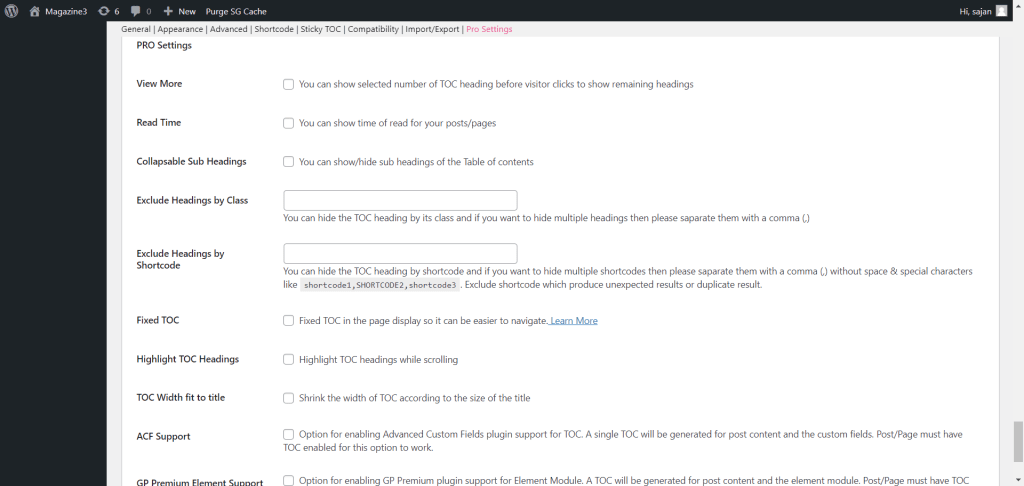
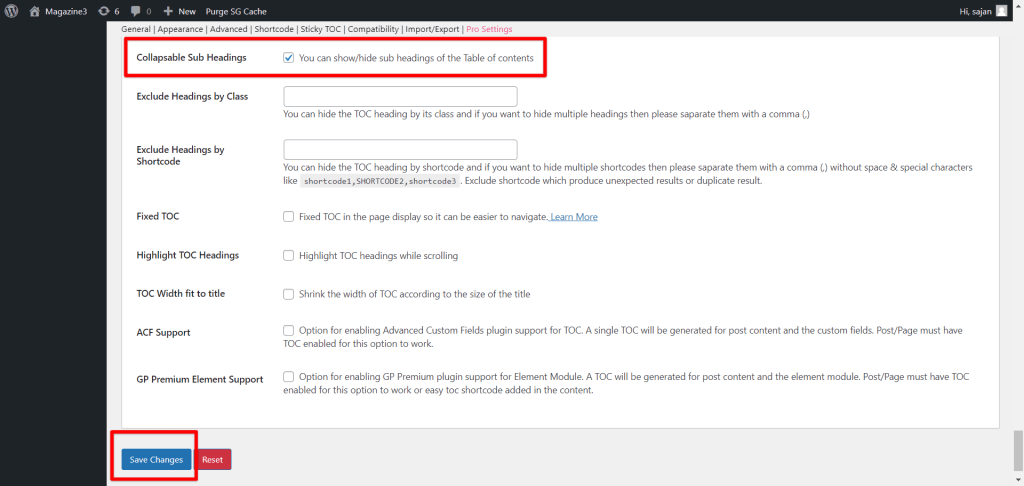
Step 4: Under the PRO settings you will find an option called “Collapsable Sub Headings” Enable the option, save the setting as shown in the screenshot below, and that’s it.
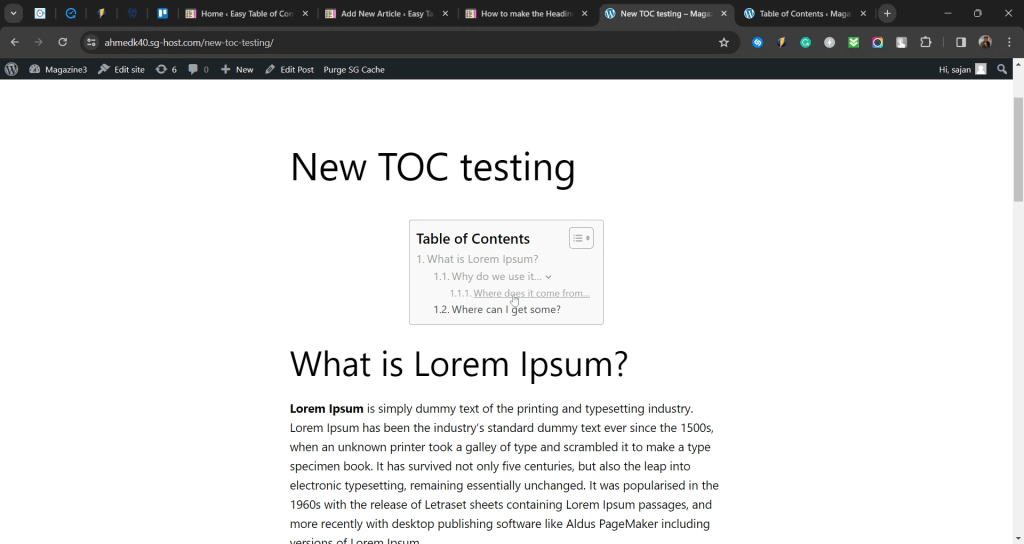
Output:
That’s it for this tutorial!
We hope we’ve cleared your doubts in case you have any feedback or questions, then please share them in the comments section below.
